When you send an invoice, SettleDue creates a private online link for your client. Your client can view the invoice and download the PDF without creating an account or logging in.
The invoice email includes a link to the online invoice page.
Your client clicks the link and sees the invoice in their browser.
Each invoice gets its own private link with a unique token. Only someone who has the link can open it. There is no login and no password.
What your client sees
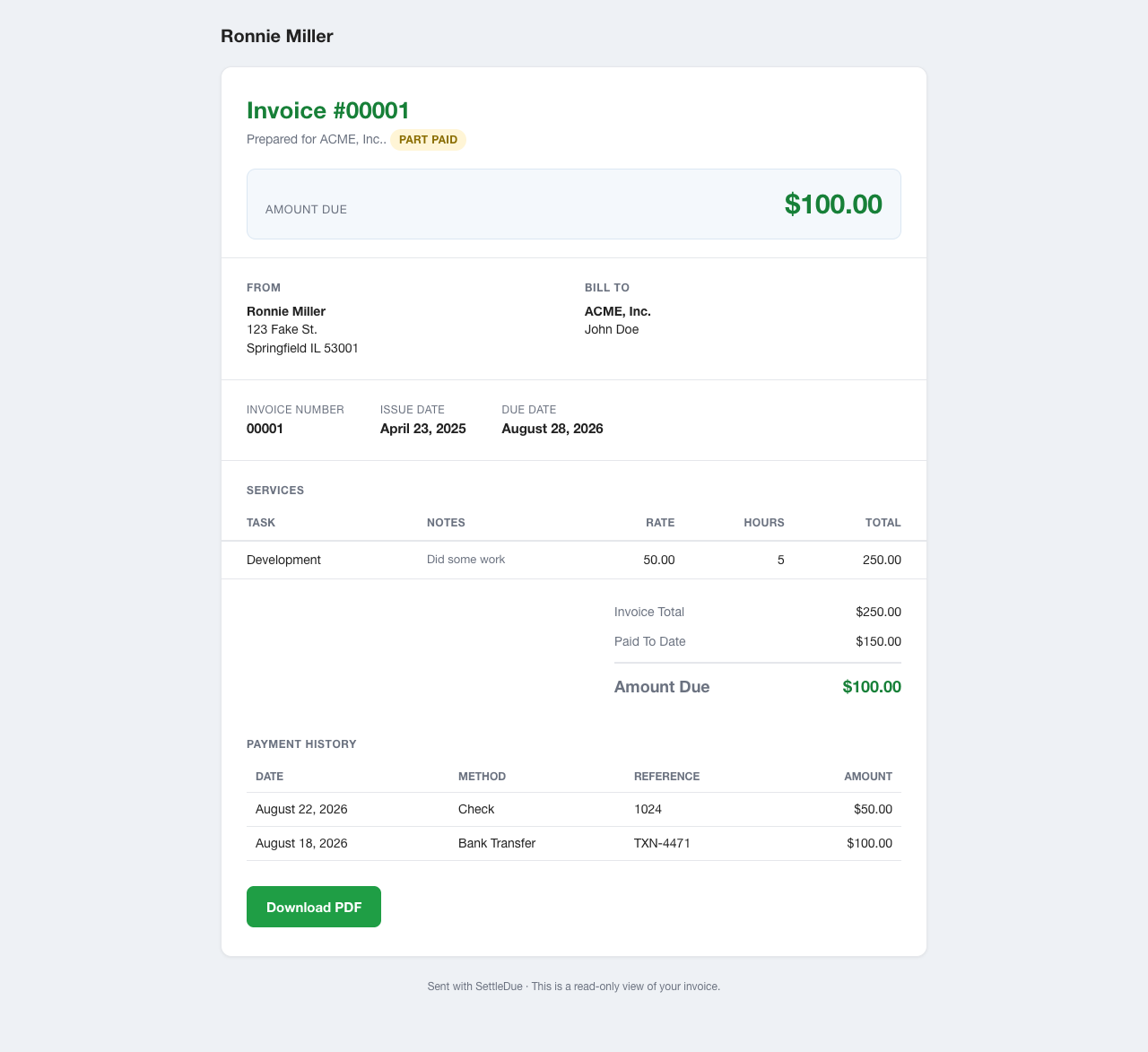
The portal page shows the full invoice details:
Your business name and logo (if you uploaded one).
The client name and contact.
Invoice number, issue date, and due date.
Line items with tasks, hours, rates, and totals.
Invoice total and amount due.
A link to download the invoice as a PDF.
The client portal page. Your client opens the link and sees the invoice in the browser.
Email tracking and the portal
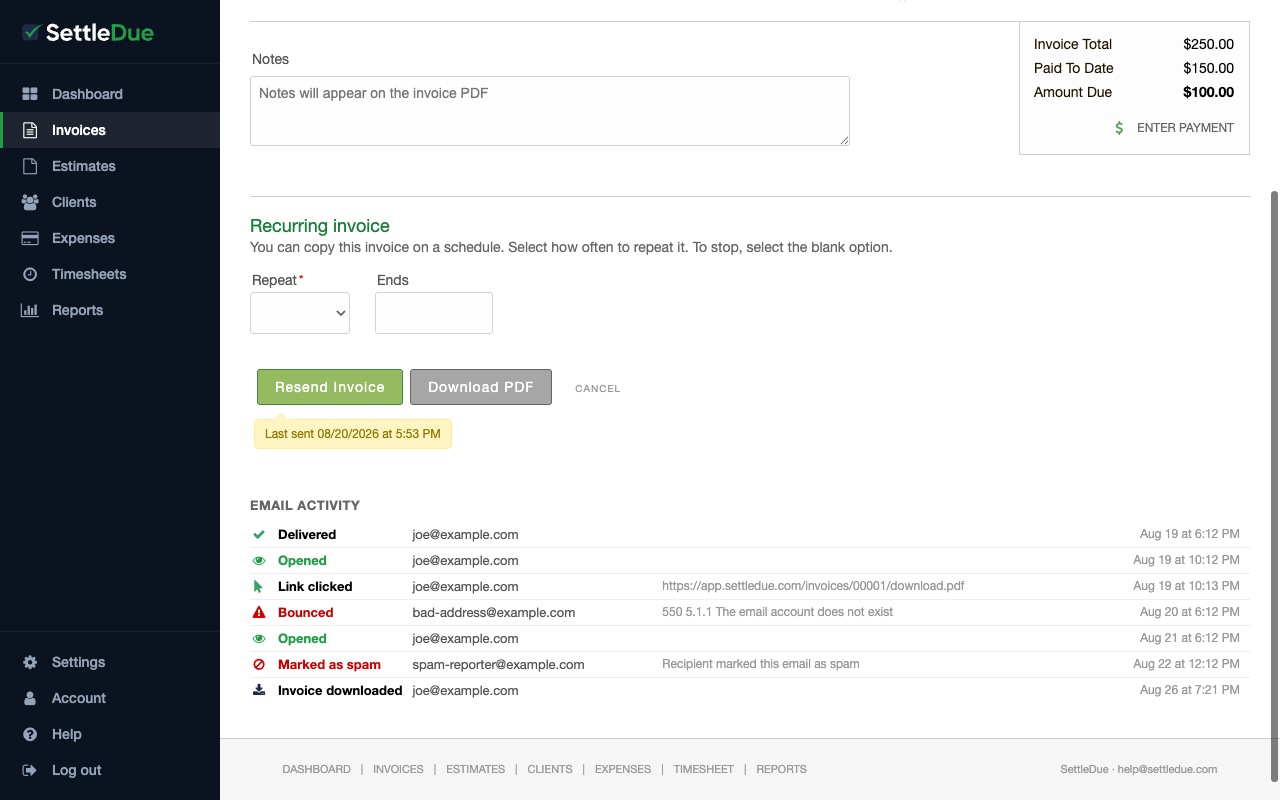
When your client opens the invoice email, clicks the portal link, or downloads the PDF from the portal, SettleDue records that activity. You can see delivery, open, and download events in the Email Activity section on the invoice edit page.
The invoice edit page. After you send an invoice, you can see email activity and resend the invoice.