After you create an invoice, you can email it to your client as a PDF. SettleDue tracks delivery and shows you when the client opens the email.
Send an invoice by email
Open the invoice you want to send. Click Resend Invoice (or Send Invoice for a first send).
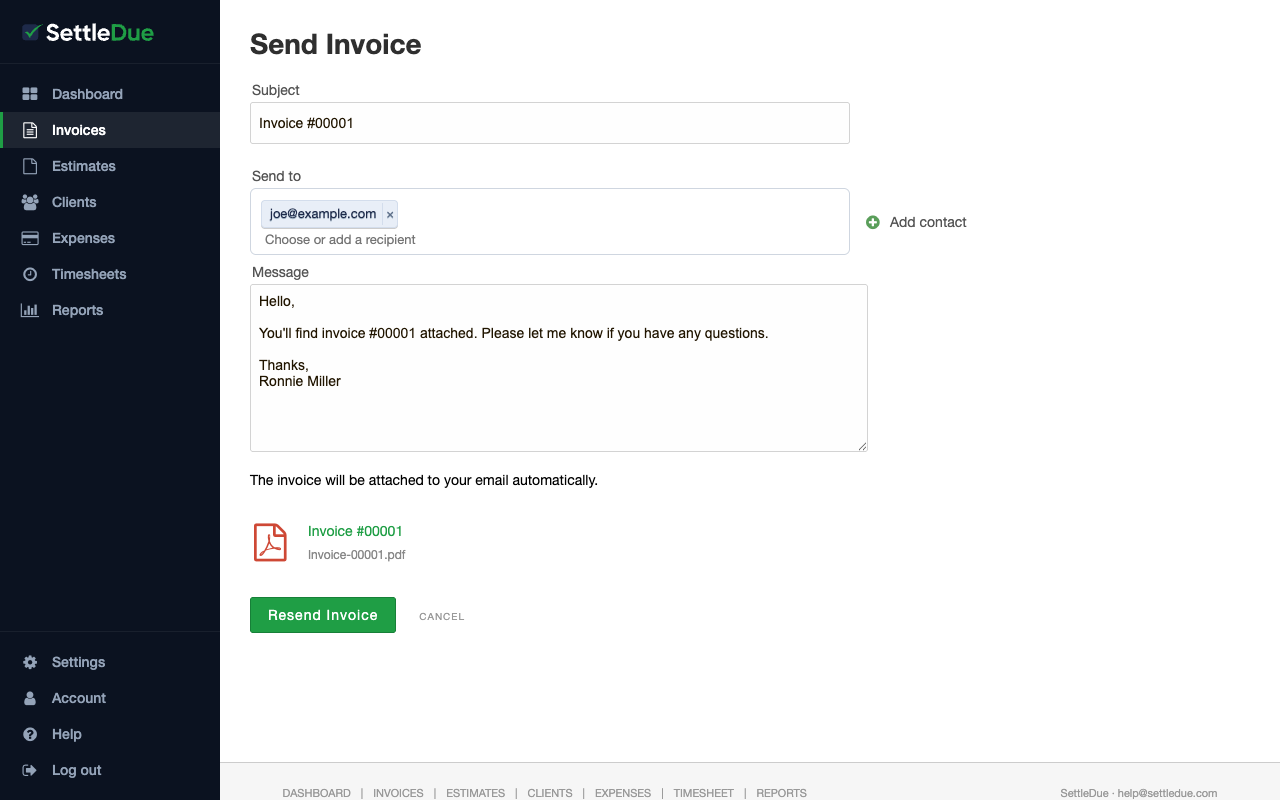
Check the Subject line. SettleDue fills it in with the invoice number.
In the Send to field, pick one or more recipients from the client's contacts. To send to a new address, select Add contact, enter the email (a name is optional), and save it. You can send an invoice even when the client has no saved contact yet.
Edit the Message if necessary. SettleDue gives you a default template.
Click Resend Invoice (or Send Invoice) to send the email.
SettleDue attaches the invoice PDF to the email automatically. You do not need to attach it yourself.
The Send Invoice page. The invoice PDF is attached automatically.
Your client receives a link to view the invoice online. This is the client portal.
View email activity
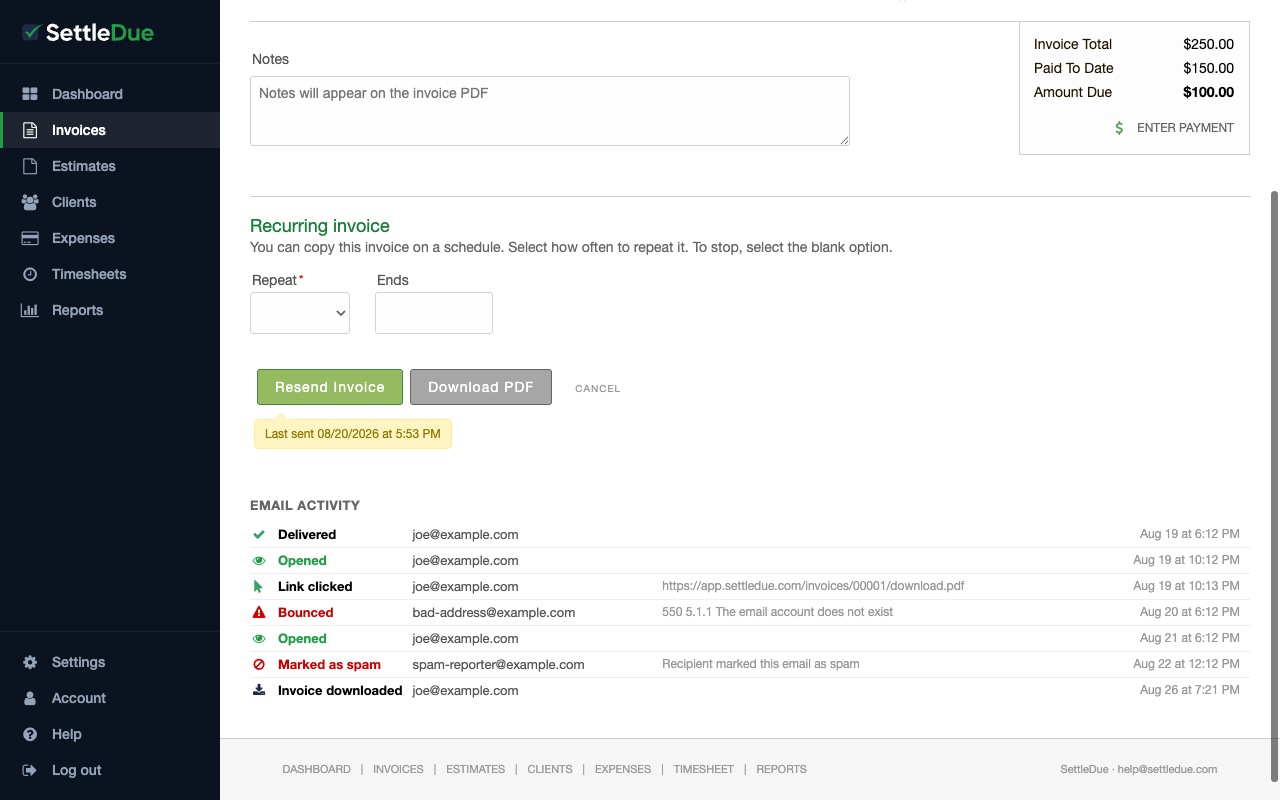
After you send an invoice, scroll to the bottom of the invoice edit page. The Email Activity section shows a timeline of email events.
Events you can see include:
Delivered — the email reached the recipient's mail server.
Opened — the recipient opened the email.
Link clicked — the recipient clicked a link in the email (for example, the PDF download).
Bounced — the email could not be delivered to the address.
Marked as spam — the recipient marked the email as spam.
Invoice downloaded — the client downloaded the PDF from the invoice portal.
Each event shows the email address and the date and time.
The Email Activity section on the invoice page. Each row shows one email event.
Resend an invoice
You can resend an invoice at any time. Open the invoice and click Resend Invoice. The compose page shows the same fields as the first send. The page also shows the date and time of the last send.
Download the PDF
To save a copy of the invoice, click Download PDF on the invoice edit page.
Related guides
Client portal — how your client views the invoice online.