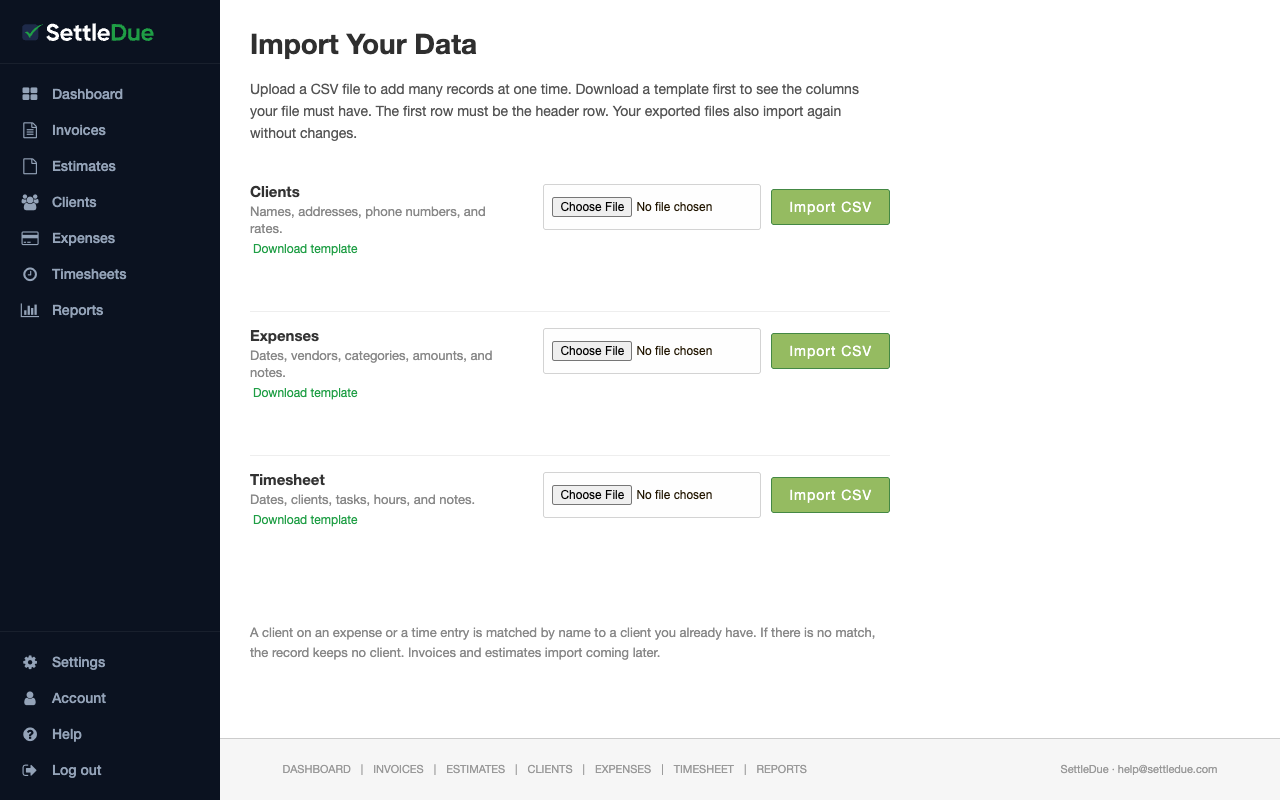
You can upload CSV files to add many records at one time. This is useful when you move from another tool or when you need to add data in bulk.
Supported data types
SettleDue supports three types of import:
Clients — names, addresses, phone numbers, and rates.
Expenses — dates, vendors, categories, amounts, and notes.
Timesheet — dates, clients, tasks, hours, and notes.
Import your data
Go to Account and click Import data. You can also go directly to the Import page from the sidebar.
Find the section for the data type you want (Clients, Expenses, or Timesheet).
Click Download template to get a sample CSV file with the correct column headers.
Open the template in a spreadsheet program. Add your data. The first row must be the header row.
Save the file as CSV.
Click Choose File and select your CSV file.
Click Import CSV.
The Import page. Download a template first, then upload your CSV file.
Your exported files also import again without changes. If you exported data before, you can re-import those same CSV files.
How client matching works
When you import expenses or timesheet entries, the system matches each row to a client by name. If the client name in the CSV matches a client you already have, the record links to that client. If there is no match, the record keeps no client.
Error handling
If a row in your CSV has a problem, the system reports the error for that row. Other valid rows still import. Review the error messages and fix your file, then import again for the failed rows.