When a client pays an invoice, record the payment in SettleDue. The system updates the balance automatically.
Open the payment form
- Go to Invoices and click the invoice you want to update.
- Find the summary area on the right. It shows Invoice Total, Paid To Date, and Amount Due.
- Click Enter Payment. A modal window opens over the invoice.
Enter the payment details
- Type the payment amount in the Amount field. You can enter the full amount or a partial amount.
- Set the Date the payment was received. The field defaults to today.
- Select a Method from the dropdown: Bank Transfer, Check, Credit Card, or PayPal.
- Optionally, add a Reference # such as a check number or transaction ID.
- Click Enter Payment to save.
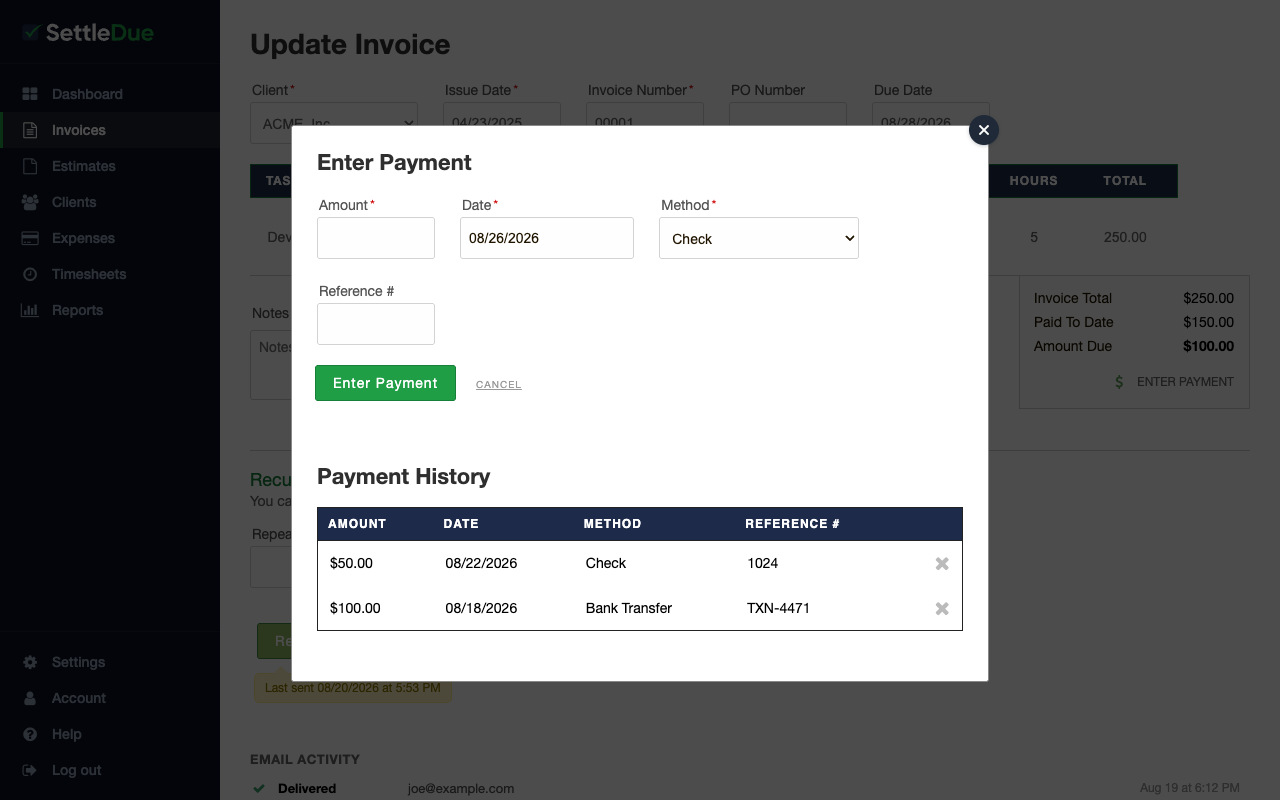 The Enter Payment modal opens on top of the invoice edit page.
Track balances
After you save a payment, the invoice summary updates:
- Paid To Date increases by the payment amount.
- Amount Due decreases by the same value.
You can record more than one payment on the same invoice. Each payment appears in the Payment History section of the modal.
To record a partial payment, enter only the amount you received. The remaining balance stays visible on the invoice.
Related guides
- See your reports — run a Payments Collected report to review all recorded payments.

