If you bill a client on a regular schedule, you can set an invoice to repeat. The system creates a new draft invoice for you each time.
Set up a recurring invoice
Open the invoice you want to repeat. Go to Invoices and click the invoice number.
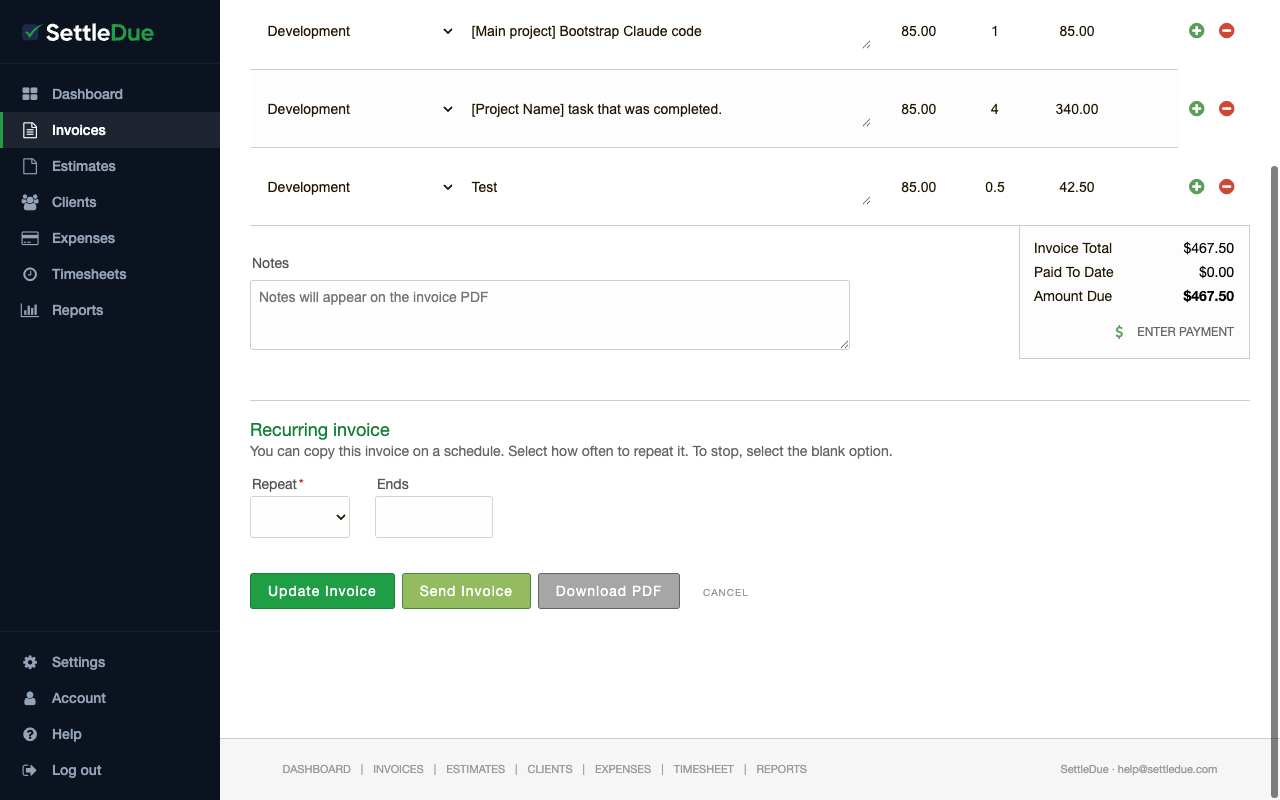
Scroll down to the Recurring invoice section.
Open the Repeat dropdown. Select a frequency:
Weekly — creates a new draft every week.
Every 2 weeks — creates a new draft every two weeks.
Monthly — creates a new draft every month.
(Optional) Set an Ends date. The schedule stops after this date.
Save the invoice.
The Recurring invoice section on the invoice edit page. Select a repeat frequency and an optional end date.
What happens next
When the schedule runs, the system copies the invoice and creates a new draft. The new draft uses the same client, line items, and amounts. The issue date updates to the new date.
Recurring invoices do not send automatically. You must review each new draft and send it yourself. This lets you make changes before the client sees it.
Stop a recurring invoice
Open the recurring invoice.
In the Repeat dropdown, select the blank option at the top.
Save the invoice.
The system will not create any more drafts from this invoice.