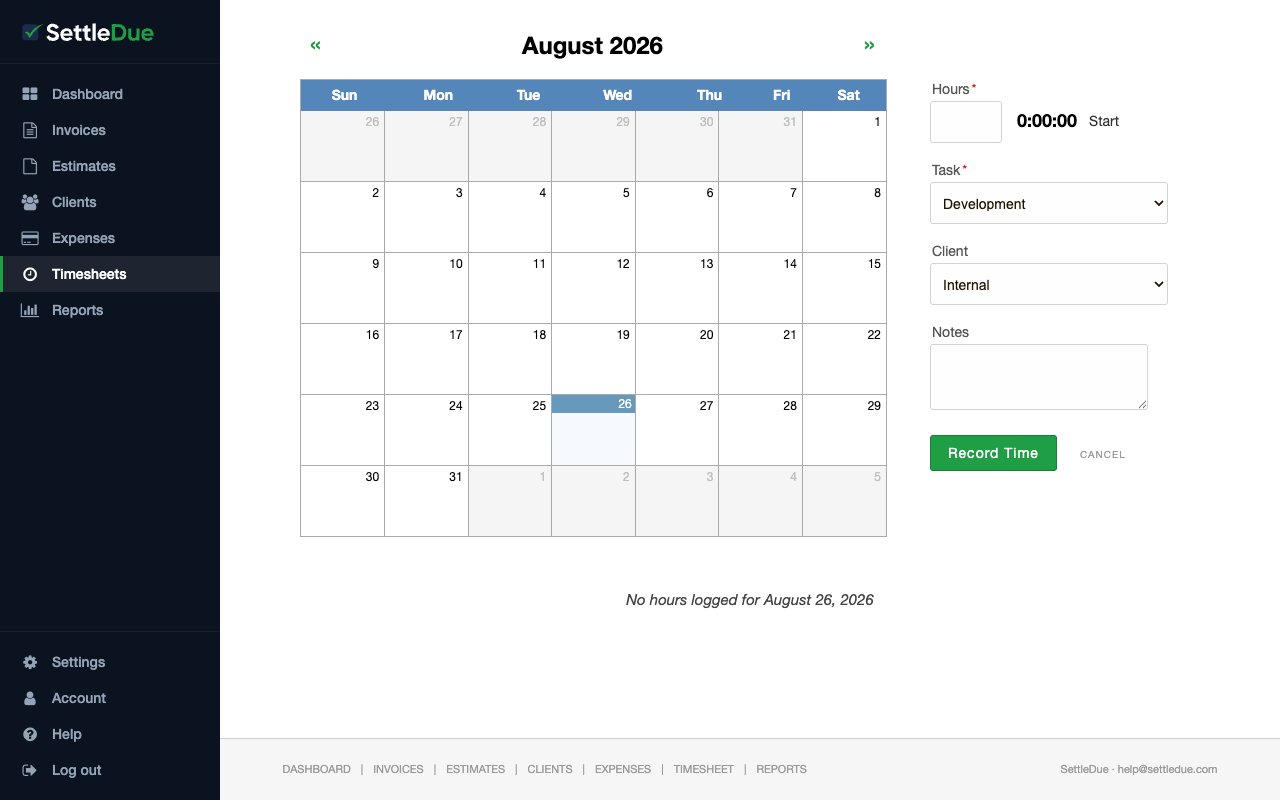
The timesheet lets you log hours for each client and task. You can type your hours or use the built-in timer. Tracked time flows directly onto an invoice when you are ready to bill.
Log a time entry
Click Timesheet in the navigation bar.
Select a date on the calendar. The current date is highlighted. Use the arrows to move between months.
Enter the number of hours in the Hours field. You can also click Start to run the timer and let it count for you.
Select a Task from the dropdown (for example, Development, Meetings, or Research).
Select a Client from the dropdown. Choose "Internal" for non-billable work.
Add optional Notes to describe the work.
Click Record Time.
The timesheet page. Select a date on the calendar, then fill in the form on the right to log your hours.
Use the timer
Click Start next to the Hours field to begin the timer. The timer counts up while you work. When you finish, the Hours field is populated automatically.
Edit or remove a time entry
Click a date on the calendar to see entries for that day. Select an entry to change the hours, task, client, or notes. Save your changes when done.
Bill tracked time on an invoice
When you are ready to bill a client, use Generate Invoice on the Invoices page. Select the client and a date range. SettleDue creates an invoice with line items from your timesheet entries.
Assign a client to every billable time entry. Only entries with a client can appear on a generated invoice.
Next steps
Ready to bill for your tracked time? Learn how to create an invoice.