

← Help Center

Add Your First Client

Before you can track time or create an invoice, you need at least one client. This guide shows you how to create a client record, add contacts, and set an hourly rate.
Create a client

  1. Select Clients in the sidebar.
  2. Select New Client.
  3. Enter the client name in the Name field.
  4. Enter the office phone number in the Office Phone field.
  5. Fill in the address fields if you want the address to appear on invoices.
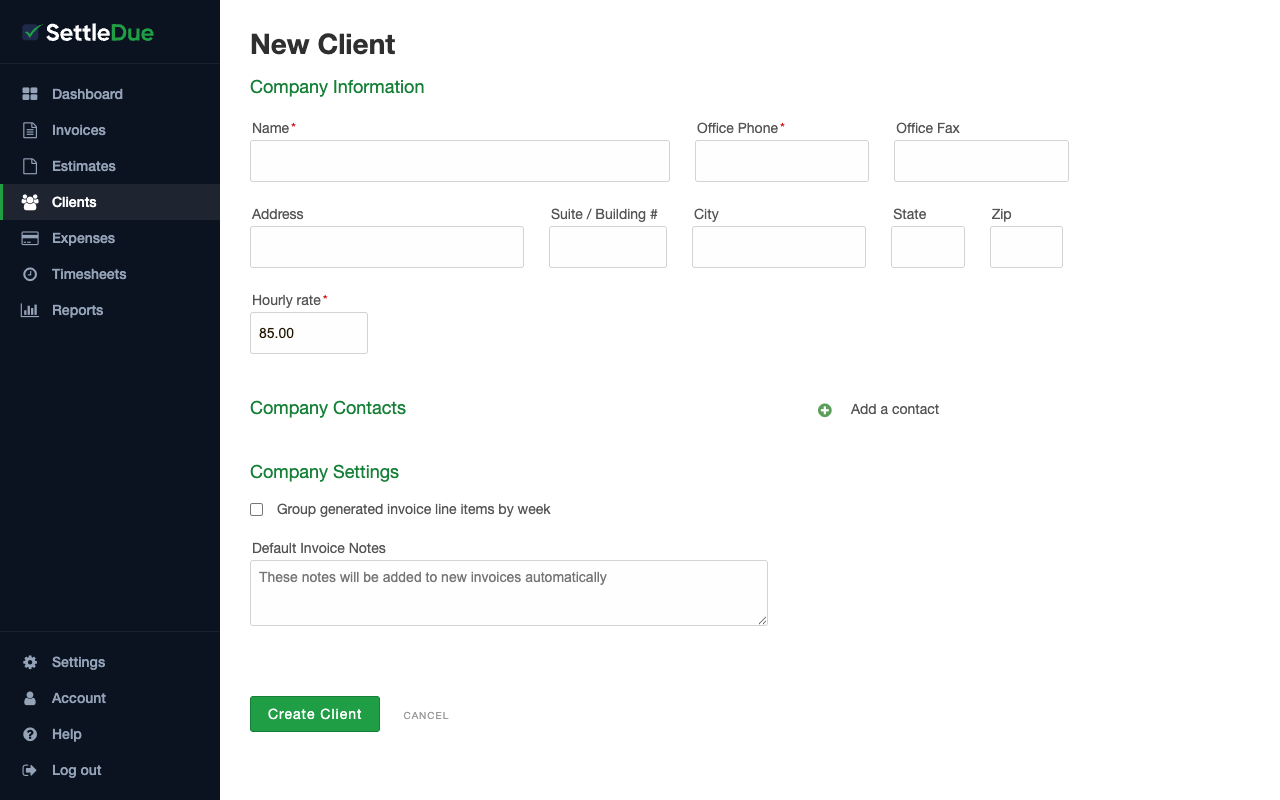
The New Client form with fields for company information, hourly rate, contacts, and settings.
The New Client form in SettleDue.

Set an hourly rate

Each client has its own Hourly rate field. SettleDue uses this rate when you track time for that client. You can change this rate at any time.

The hourly rate is optional. You can also set a rate on each invoice line item.

Add contacts

  1. Scroll to the Company Contacts section.
  2. Select Add a contact.
  3. Enter the contact's email address. A name and phone number are optional.
  4. Repeat for each contact you want to add.

Contacts receive invoice emails and get access to the client portal. Add every person at the client who needs to see invoices or make payments.

On a client you already saved, each contact you add or change saves right away. On a new client, the contacts save when you create the client.

Save the client

  1. Select Create Client.

Your client now appears in the Clients list. You are ready to track time or create your first invoice.