Your invoices show your brand. Upload a logo and select a theme so every PDF you send looks professional.
Upload your logo
Go to Account in the sidebar.
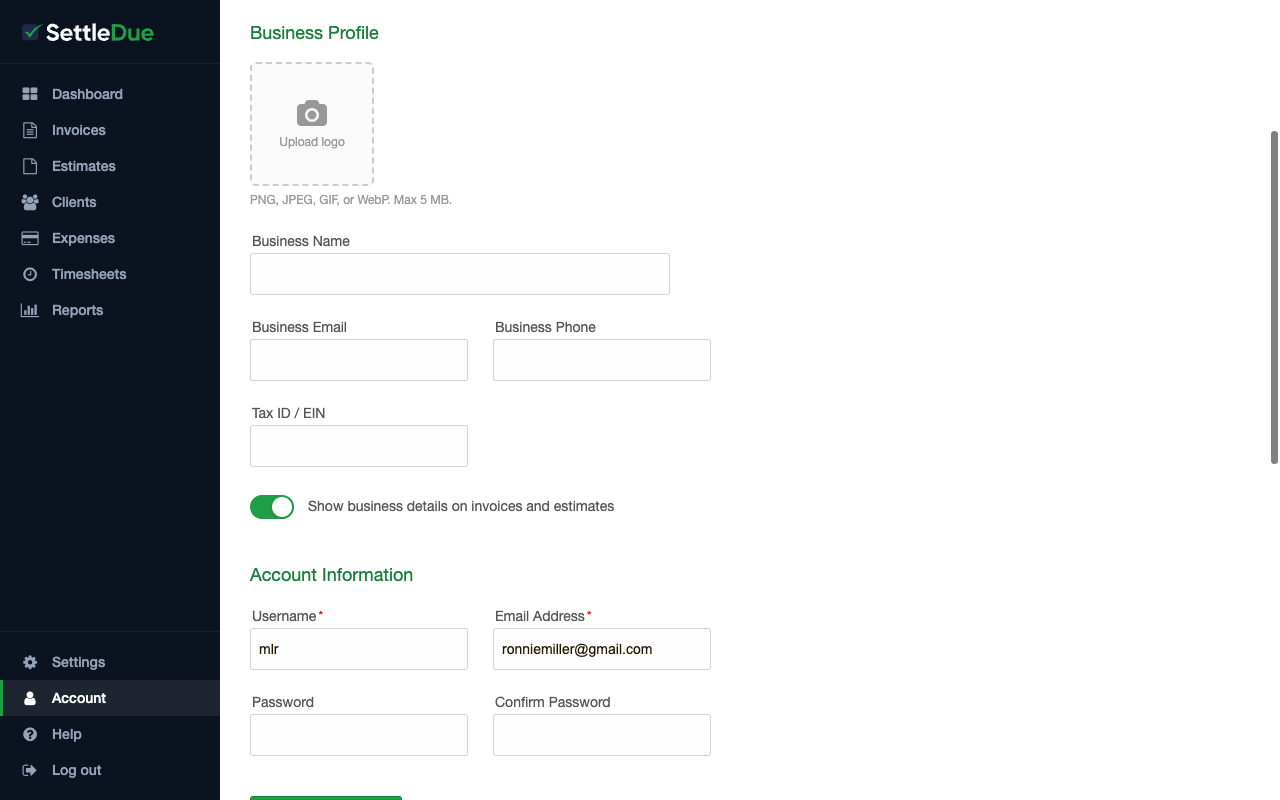
Find the Business Profile section.
Click Upload logo. Select a PNG, JPEG, GIF, or WebP file (5 MB maximum).
Click Update Account to save.
The Business Profile section on the Account page. Upload your logo here.
Your logo appears at the top of every invoice and estimate PDF.
Show or hide business details
Below the Tax ID / EIN field on the Account page, there is a checkbox: Show business details on invoices and estimates. When you turn it on, your business name, email, and phone number appear on the PDF. Turn it off to hide them.
Pick an invoice theme
Go to Settings in the sidebar.
Scroll down to the Invoice Theme section.
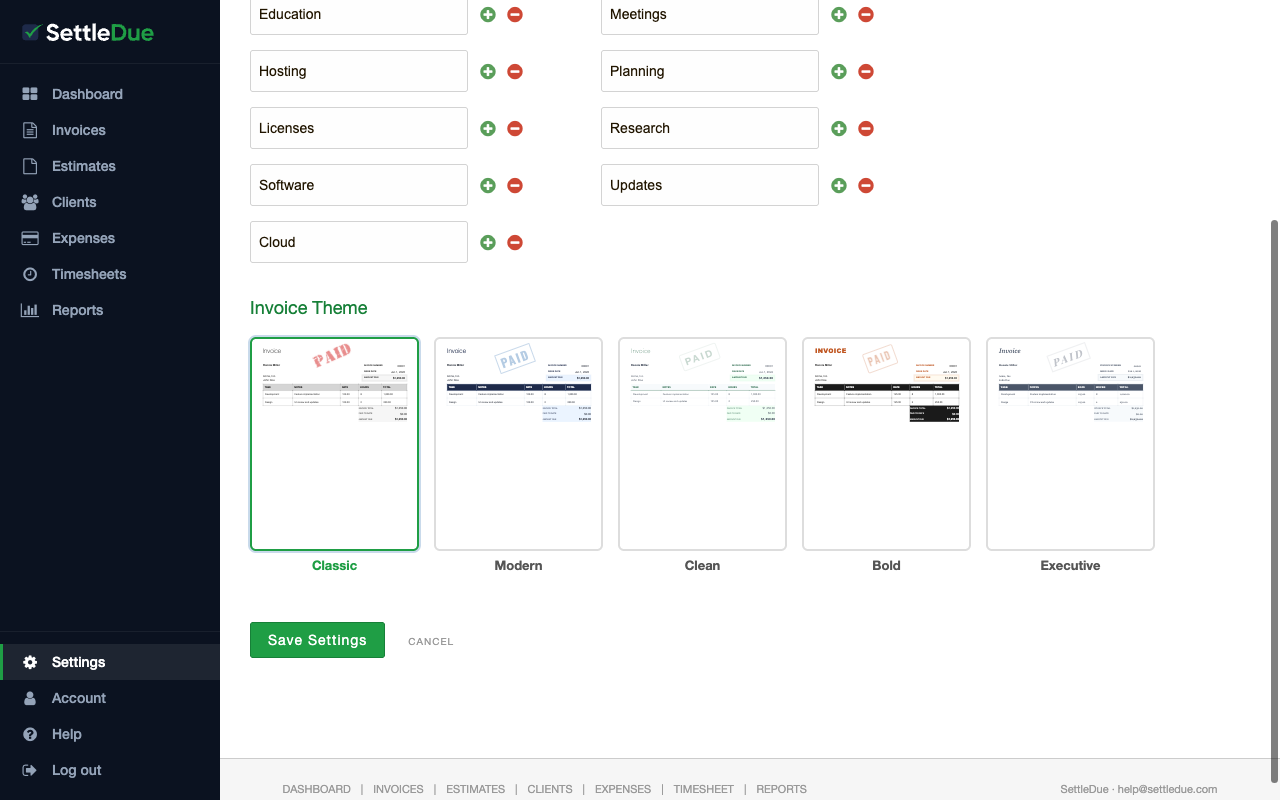
You will see a preview card for each theme. Select the one you want.
Click Save Settings.
SettleDue offers five invoice themes:
Classic — a clean layout with your logo and a simple line-item table.
Modern — adds a bold header bar and a "PAID" stamp when paid.
Clean — minimal borders and generous spacing.
Bold — uses stronger typography and darker accents.
Executive — a refined look with subtle accents.
The Invoice Theme chooser in Settings. Each card previews the layout and style of that theme.
Your theme applies to all invoices and estimates. You can change it at any time and new PDFs will use the updated look.
How the logo and theme render on the PDF
When you download or send an invoice, the system builds a PDF with your selected theme. Your logo sits at the top of the document. Below it, the invoice shows the client name, invoice number, issue date, due date, line items, and totals.