Record business expenses and assign them to clients. Billable expenses appear as line items when you create an invoice.
Add an expense
- Click Expenses in the navigation bar.
- Click the New Expense button.
- Enter the Amount, Vendor, and Date. All three fields are required.
- Optionally, type a Category (for example, "Software" or "Hosting") and add Notes.
- Click Create Expense to save the record.
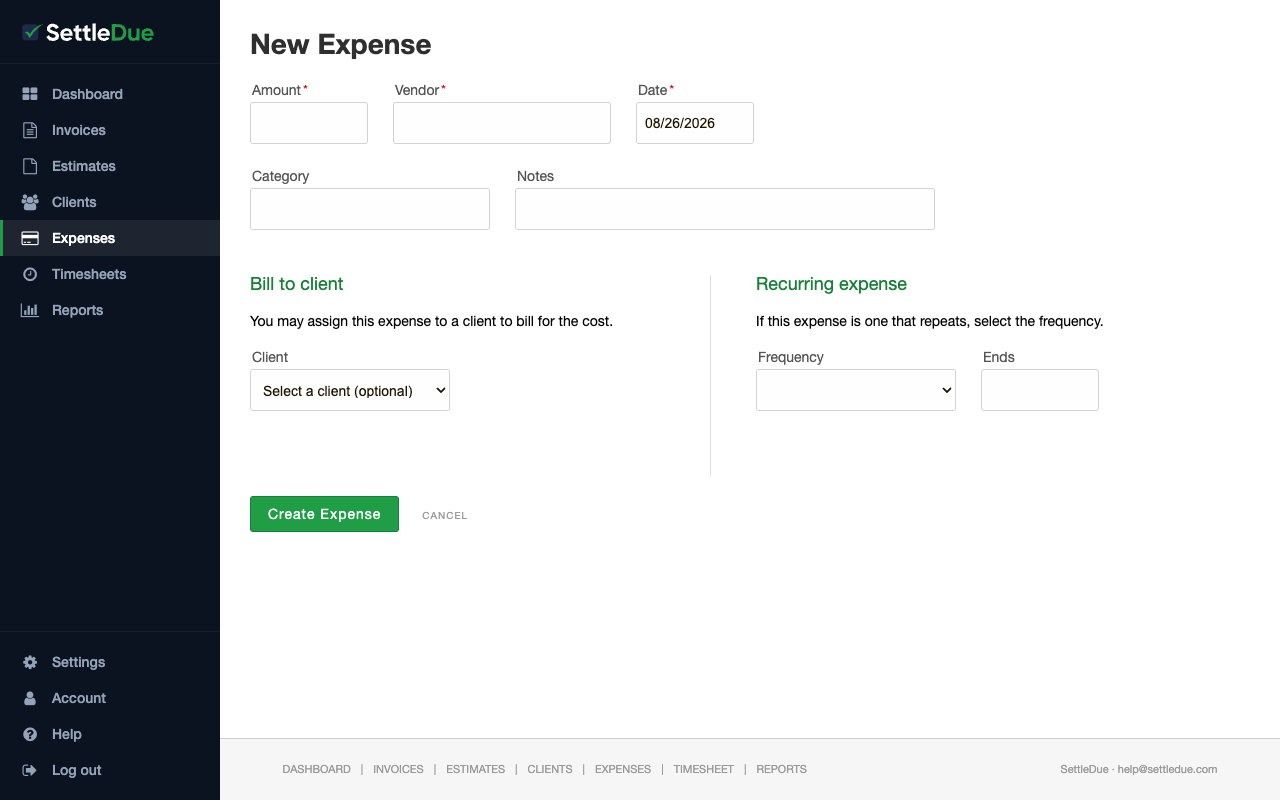 The New Expense form. Fill in the amount, vendor, and date to record a cost.
Assign an expense to a client
To bill a client for an expense, use the Bill to client section on the expense form.
- Open the Client dropdown in the Bill to client section.
- Select the client you want to bill.
When you create an invoice for that client, the expense appears as a line item.
The Client field is optional. Leave it blank if the expense is not billable.
Set up a recurring expense
If an expense repeats on a schedule, use the Recurring expense section.
- Open the Frequency dropdown and select Daily, Weekly, Monthly, or Yearly.
- Optionally, set an Ends date to stop the recurrence.
Related guides

